1. Choose hosted or Enterprise access
Open fdie.magdox.io and register for hosted self-service. Verify the sign-in address and create your organisation. Select seats, storage, monthly analyses and monthly or annual billing. The shared service stores core application data in India, subject to the provider and integration paths in the DPA.
Self-service is paid on Dodo Payments' checkout; there is no free trial. Review the tax and renewal amount before approving it. The first payment has a 14-day money-back guarantee: if your organisation has analysed three or fewer new images, an administrator can have it refunded in full from Settings → Billing within 14 days, which ends the subscription at once. A separately arranged Enterprise evaluation can run for 14 days without automatic paid conversion. On-premises delivery is contracted and provisioned for one customer organisation; public self-signup is not the on-premises onboarding model.
2. Configure your team
- Set the organisation name and confirm who owns billing and security administration.
- Assign each person an individual account and the least-privileged role needed. FDIE seats count every person who can sign in, including viewers; pending invitations reserve capacity.
- Configure available MFA and recovery methods. Test any OIDC sign-on configuration with a non-production account before enforcing it.
- Choose notification recipients, retention and any external destinations before sharing reports.
3. Prepare an image
- Use an image you own or have written authority to assess. Keep the original and record its hash, product, version and provenance.
- Remove unrelated personal data and credentials where this does not invalidate the assessment. If secrets are part of the firmware being assessed, treat the entire image and its outputs as sensitive.
- Confirm current upload, storage and format limits in the application. Do not email private firmware or paste it into the public contact form.
- Use a representative release pair when evaluating Delta Intelligence.
4. Upload and follow the job
Use the firmware library's upload action, supply product and version context, and follow the analysis queue. A job marked complete can still have partial extraction, unsupported binaries, failed stages or unassessed checks. Open those details before interpreting the findings.
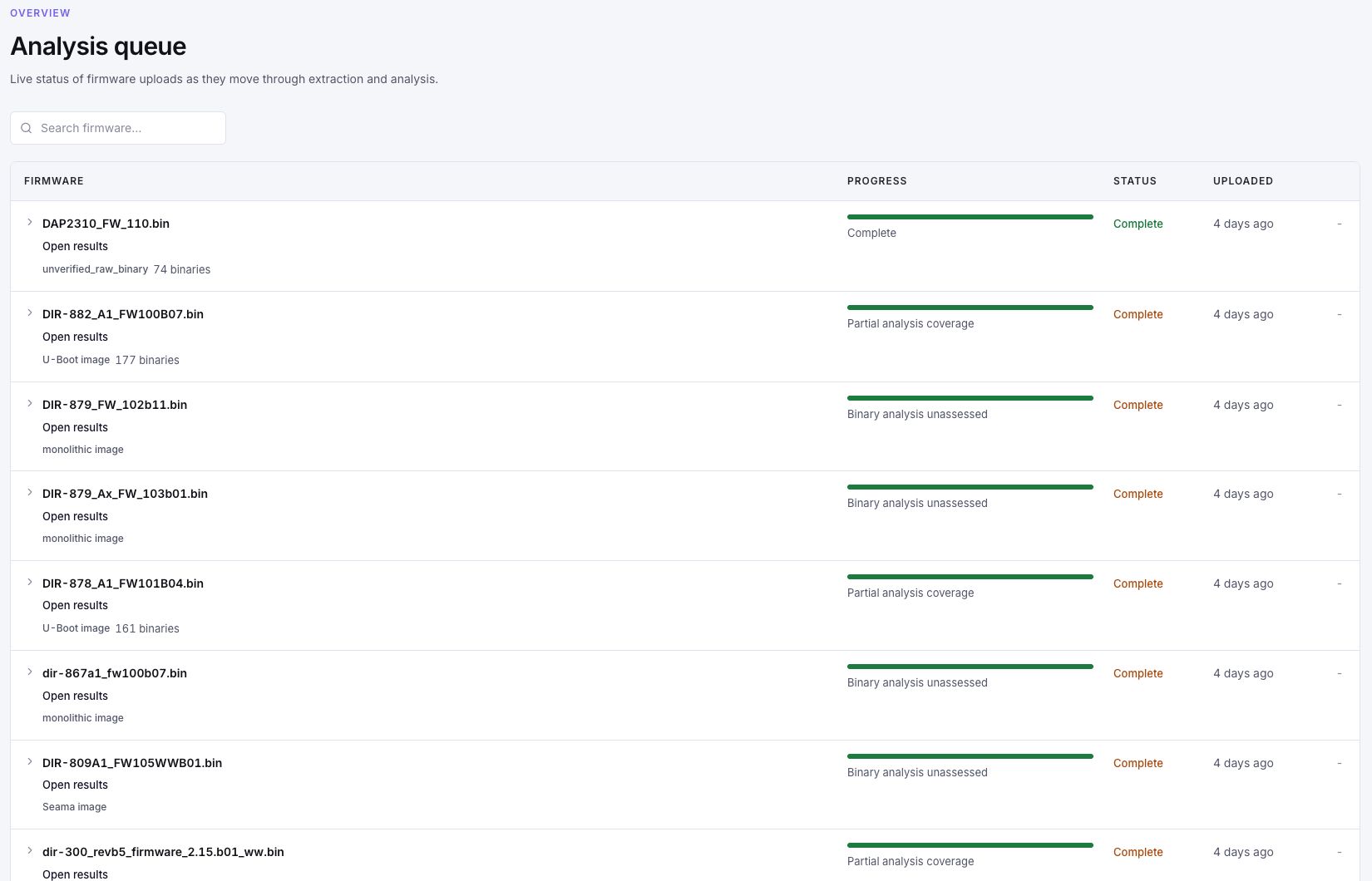
5. Review before distribution
Inspect component evidence and matched version ranges, assess whether the finding applies to the device, and record a disposition with reasons. Review the scope of SBOM, CBOM, VEX and report exports before sharing them. Do not infer that a missing match means no vulnerability.
Check the first review is complete
- The organisation and the product/version labels identify the intended assessment.
- The job has reached a final processing state, and partial or unassessed stages have been reviewed.
- At least one material finding has been checked against its evidence rather than only its summary.
- The export has been opened and its recipients, scope and sensitive contents have been reviewed.
If the first upload does not produce useful evidence
| Symptom | Check | Next step |
|---|---|---|
| Upload is refused | File size, available storage, monthly allowance and account permissions | Review the displayed limit; do not repeatedly upload copies to bypass it |
| Extraction is partial | Image packaging, encryption and the reported extraction stage | Confirm the correct image or arrange compatibility review |
| Runtime work cannot execute | Selected mode, CPU/ABI, dependencies and hardware assumptions | Use available static evidence and record the execution gap |
| The result seems unexpectedly small | Coverage, failed stages and component identification | Investigate what was examined before treating the count as assurance |